
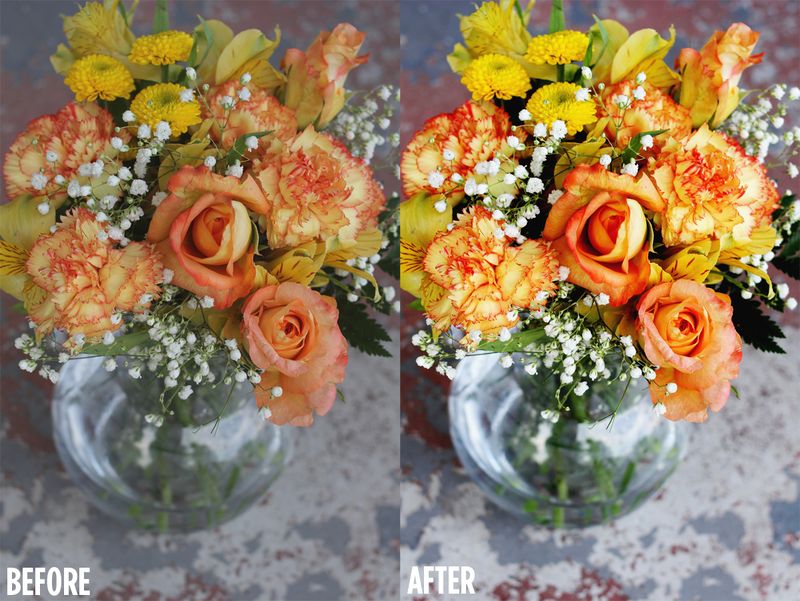
 Today I am so excited to share my second how-to using Adobe Photoshop Elements. We often post colorful photos here at A Beautiful Mess. We love the look of bright, vibrant, candy colors! Today I want to share my quick method for waking up photos with color. This is a fun tutorial to teach because I remember that this is the very first thing I wanted to learn with I got my first copy of Adobe Photoshop Elements years ago.
Above you can see my Before image. This is how it looks straight out of my camera. In the after image you can see how much more colorful the image became in a few simple clicks… enjoy!
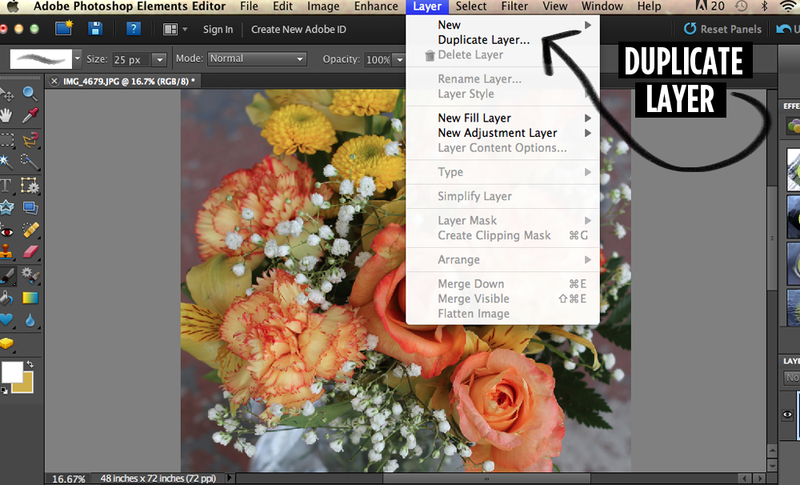 1. Open your image in Adobe Photoshop Elements. Next, select the layer option at the top of the page and press "Duplicate Layer".
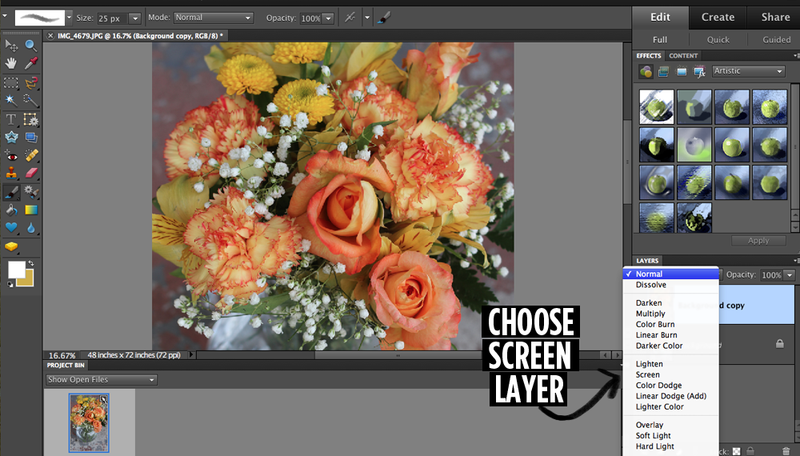 2. Open the layer menu in the bottom right hand corner of your page. Choose screen. This will make the image look much brighter. If your photo was really dark to start with you may like the brightness. For this photo it made it a little bit too bright, so I just lowered to Opacity (on that same menu) to about 60% before flattening the image. Next, flatten the image by pressing Layer, then Flatten Image.
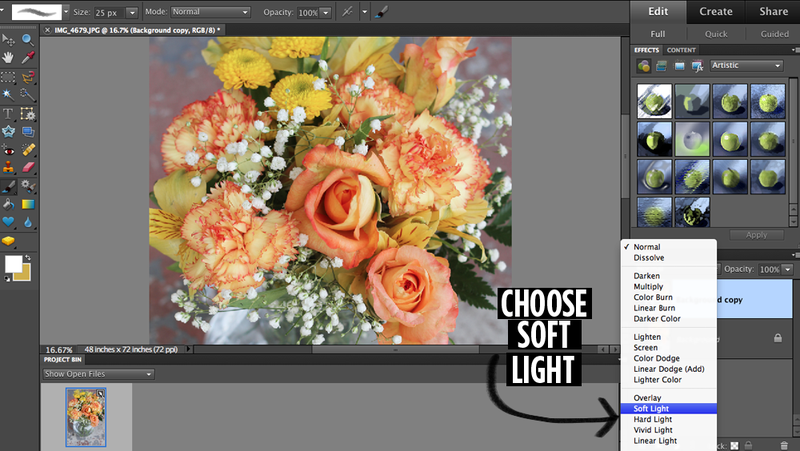 3. Duplicate your layer again. Then go back down to the layer menu and choose Soft Light. This layer will instantly give your photo vibrant, beautiful color. If it's too much for you, reduce the Opacity a little. If it's not enough color, try Hard Light instead. Flatten your image. You can repeat these steps to create a more intense color and contrast on your photos.
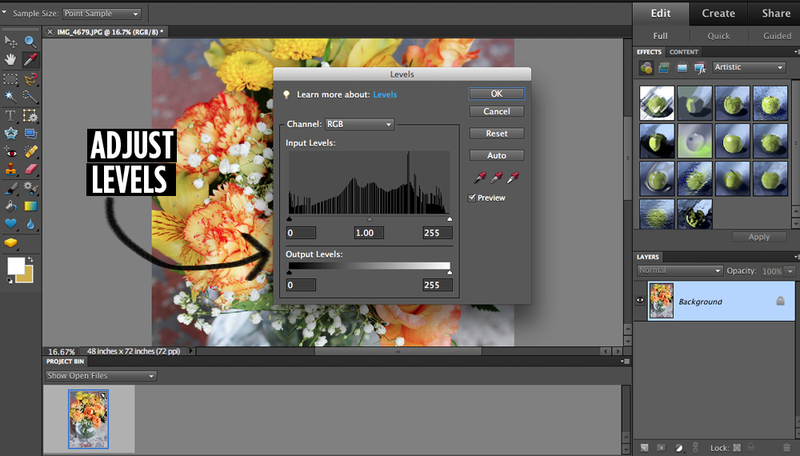 4. Last, I will show you how to adjust levels. This is a tool I use at the beginning and end of editing most images. It's super helpful! To open your levels press command and L at the same time. The graph you will see represents the levels in your photo. Moving the arrows under the graph will adjust your levels. The left arrow will make things darker, the right arrow will make things brighter and the middle arrow is the midtones. If you've never adjusted levels before I recommend spending time playing with this feature on several different photos. Adjust the levels until they create your desired look. I tend to pull the far left and far right arrows in a little on most of my photos.
It's that easy! Follow these steps while editing your next batch of photos and see what a difference you can make with the colors in your photographs! Here are a few more examples of photos we've edited using this technique…
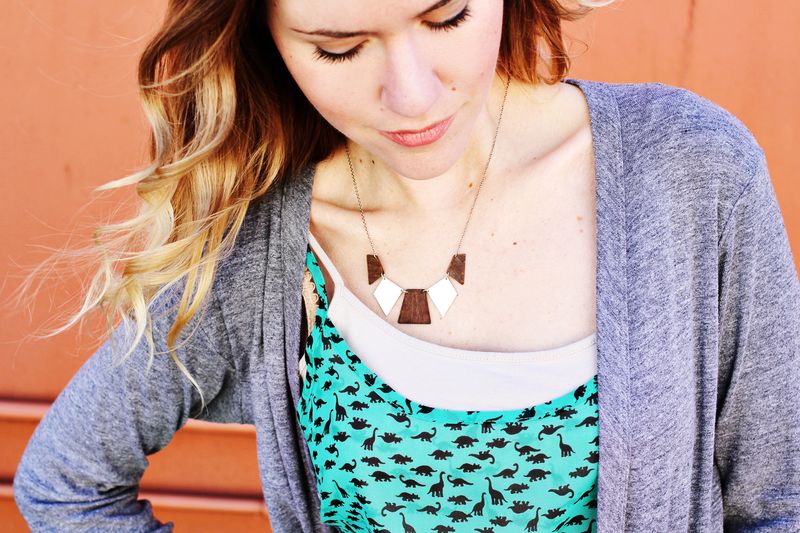
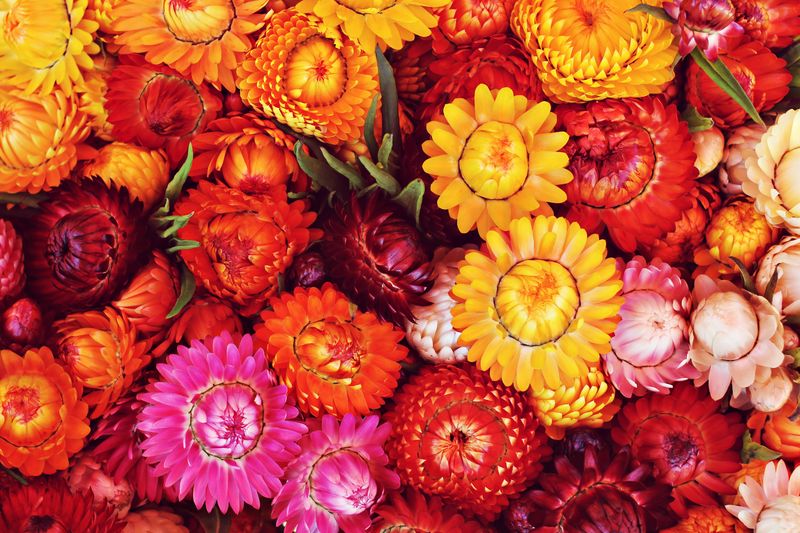
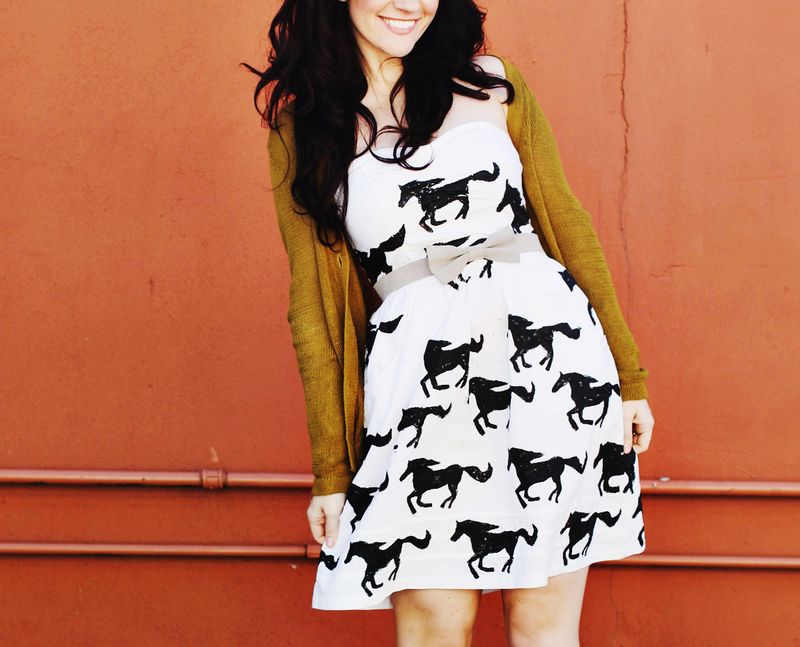
 Have fun sprucing up your color photos! Elsie + Emma
Thanks so much to Adobe Photoshop Elements for collaborating with me on this article! You can follow them here…Facebook/Twitter/YouTube/Pinterest
this post is perfect as I’ve been playing around with different lighting techniques in photoshop! thank you, this is beyond helpful!
xxx
http://ayegaiv.com/
This is amazing! This post is helping me LOVE every single picture I edit. Thank you!!
So simply yet sooooo AWESOME worked like a charm! Can’t thank you enough, I’ve spent way too much effort trying with the other settings
VERY HELPFUL!
Thank you so much for this tutorial ^___^!
Thank you so much for this!
wonderful! i’ve been needing something like this!
This is great and really effective, and the best part: It works exactly the same way in GIMP!! *love*
what kind of Liquadtex? They have paints and a million different acrylic mediums to choose from. Will any kind work? I use the Super Glossy for normal collages and a a medium for my acrylic paints.
i would just like to officially say THANK YOU for this AMAZING tutorial! i’ve really struggled to make my sub-par photos look good, and this tutorial has finally done the trick!
thank you thank you thank you 🙂
I just screamed a super loud “Thank You”! I purchased photoshop CS 5.5 a few months ago and I have been so intimidated by it. So not like me. Whew this software is what I call bad ass if I can’t figure it out. Well its sure BAD ASS. I have looked at countless tutorials that either go too fast or don’t include all the steps. I recently purchased a new camera and I have been clicking away. Well the purpose of me purchasing the combo was to edit pics for my blog. Well that hasn’t happened yet because I couldn’t figure out Photoshop. You just taught me so much. I really enjoyed this post I just Photoshoped my first photo. Yaaayyyyyy, I am so excited (doing my happy dance). I learned of your site from Alt Summit. I am planning to attend in SLC 2013. I am forever a fan of “A Beautiful Mess” I love the name. I hope to meet you two lovely ladies at the Alt Summit. I look forward to learning more Photoshop tips and tricks from you.
toodles,
L
Great tutorial 🙂
Just tried it out on a few of my photos. Works great (I use the full version of Photoshop, so it took me a couple of minutes to find Screen). Fun stuff!
Rhoda
Wonderful tutorial – thanks! And can I ask where Emma got that cute geometric necklace?
Thanks for the tips. I love your photography 🙂
very cool… thanks for the tutorials…
Awesome, tnx for the tip, ladies! 🙂
xxx Greta
Http://gretasdrawer.com
Great tutorial! I never played with the layer menu before. I will definitely use this for my next pictures. Thanks!
Ahhh!! This is magical! I just started using Photoshop again (I was a little rusty from college) and I couldn’t remember for the life of me how to do this. You are seriously amazing! Thank you so much for posting. I’m so happy to have beautiful pictures again 🙂
Fab tutorial ladies!! thank you 🙂
Cheers
~ Jillian
www.hersplitends.com
Thank you for the great tutorial! I can’t wait to give it a try.