
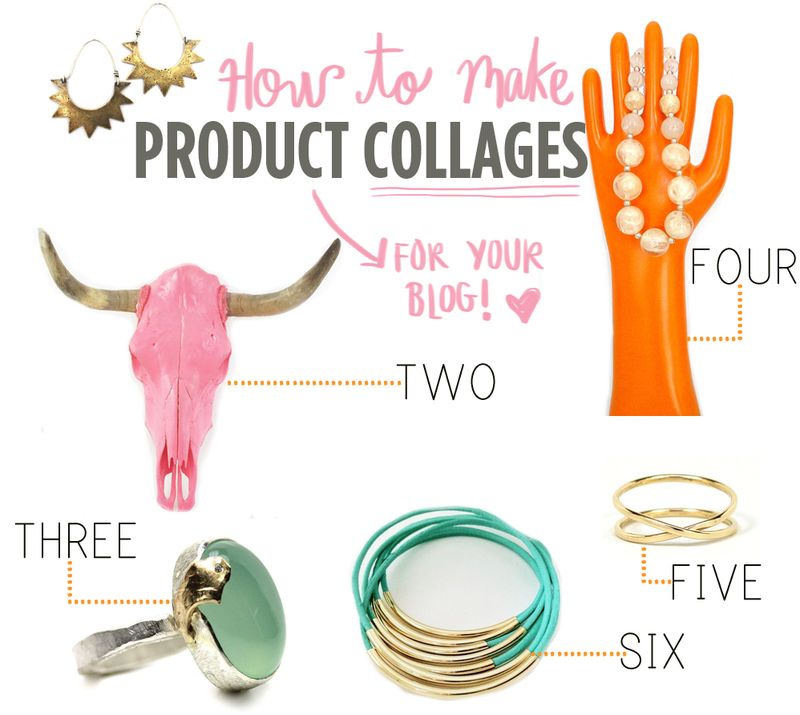
 We often get asked how we create the collages we share here on the blog. Honestly, there are a lot of different ways you can make a collage. They are super fun to make! Today I want to share a basic method that you can use with Adobe Photoshop Elements.
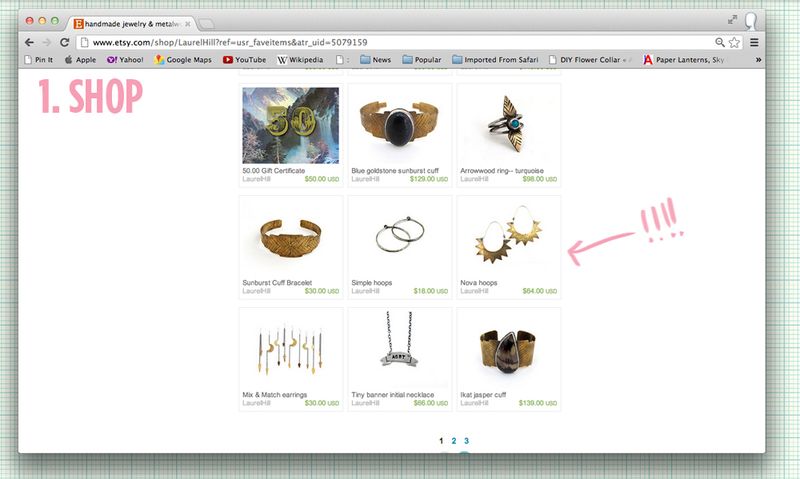 Step 1. Shop! My favorite part of the collage making process is the shopping part! For this collage I picked our some items from my favorites list on Etsy to share. As a general rule, white backgrounds will make your process much easier. Don't worry, you can erase the background if you need to it's just a little bit more time consuming.
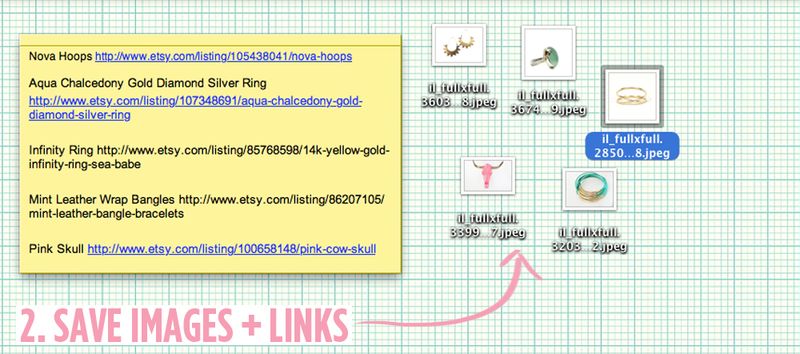 Step 2. Save images and links. As you are gathering items for your collage keep them organize. I like to keep mine together on my desktop, for quick referance. Be sure to also save the links as you go along!
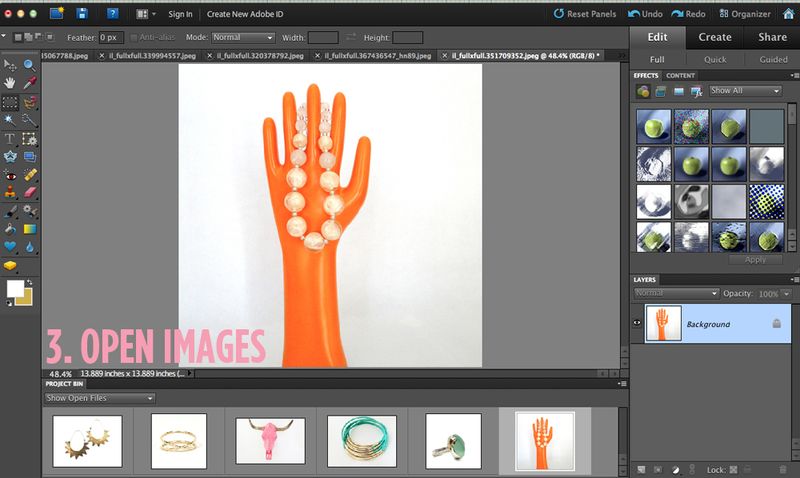 Step 3. Open all your images in Adobe Photoshop Elements.
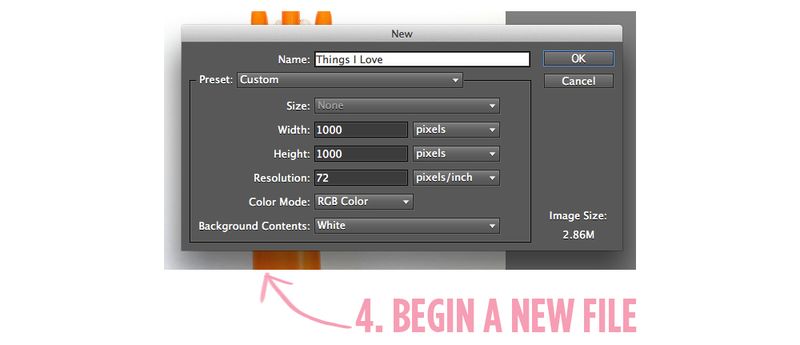 Step 4. Begin a new file. Choose File>New>Blank File. This pop-up menu will appear. You can choose the size you want your file to be. I generally make my images 1000 pixels across for web stuff. If you plan to print your file out in the future, you will need to make it larger.
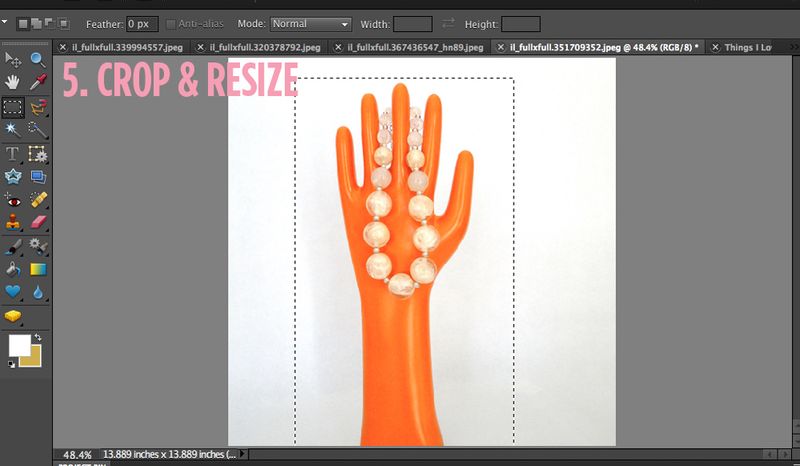 Step 5. Crop & Resize. To crop you select the crop button. (Seen here in the left hand column, it's the third one down to the farthest left.) Then simply crop around your photo, freeing your image of any extra white space.
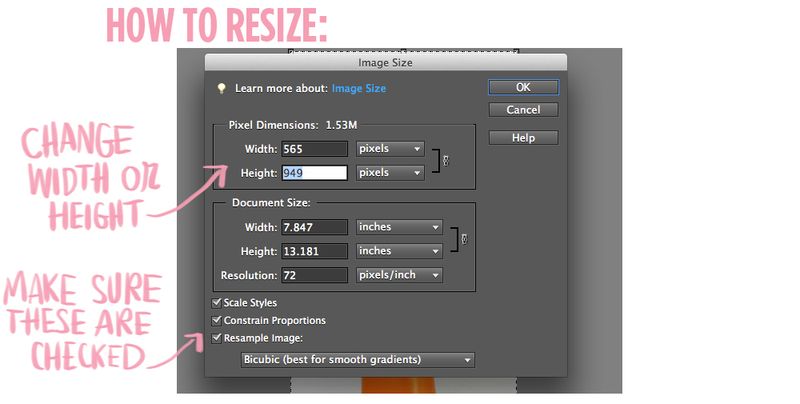 To resize: First, be sure you have checked the buttons pointed out here. Then, change the width or the height. (the other will change automatically) Press OK and you're good!
6. Copy/Paste. To copy your product image first crop around it, then press Edit>Cut. Next, move over to your new/blank file. Press Edit>Paste.
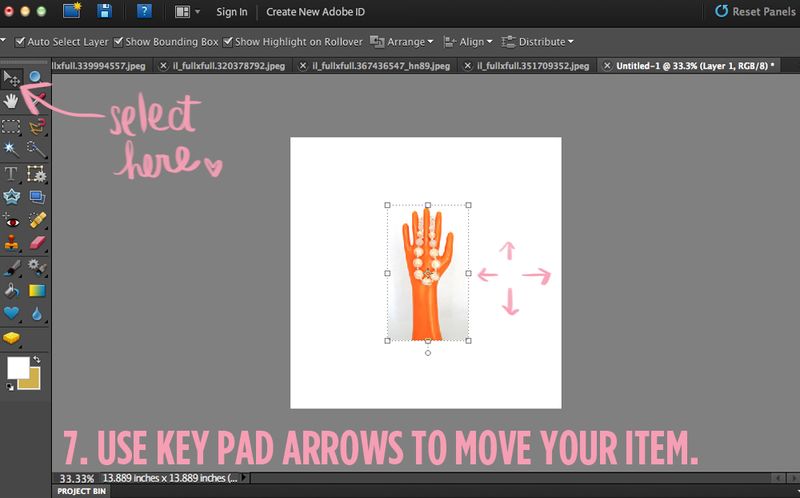 7. Use key pad arrows to move your item. First select the top left button. Then, move your item with the arrows on your keypad until you are happy with it's placement.
Tip: I usually place the larger items (or focal points) on my collage first. This makes it a little easier to create a balanced design.
8. After you are finished pasting images choose Layer>Flatten.
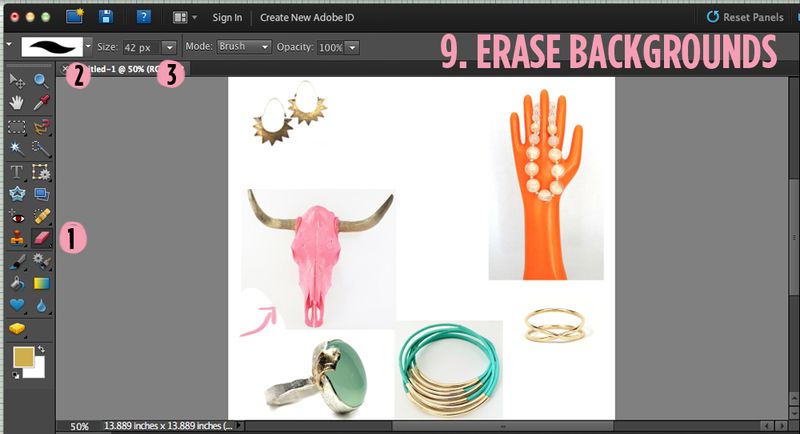 9. Erase the backgrounds. The tools pointed out on the above image are 1- The eraser tool. Choose this to erase the background. Also make sure white is the bottom color selected on your color swatches below. 2. Brush menu. You can choose from different brushes on this drop down menu. Choose something basic for this step. 3. Brush size. This is important. I use a very large brush to erase most of the background and then switch to a small brush to clean up the edges around a product.
You can see that my pink arrow is pointing to a section I had already erased. This process is a little bit tedious, but much quicker than a lot of other methods!
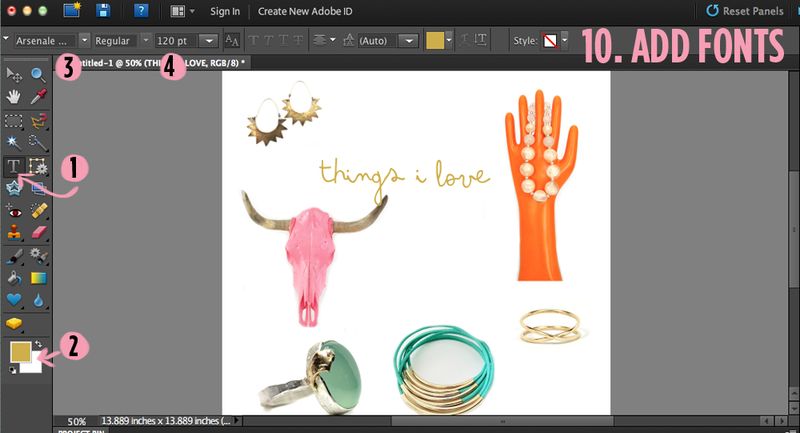 10. Add Fonts. 1. Select the font tool. 2. Choose a color for your font. (top swatch- I chose mustard yellow) 3. Choose a font. Adobe Photoshop Elements comes with fonts. You can also download fonts from the internet and install them. 4. Choose your font size. After you have done these things, click anywhere on the photo and you can start typing. You can move your font around with your mouse until you like the placement.
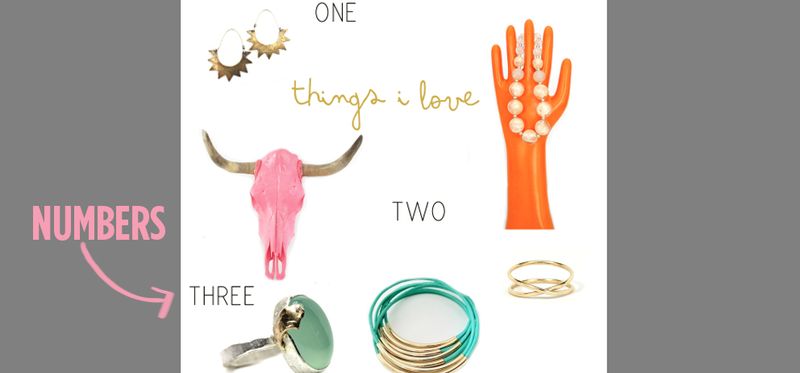 I used a different font and color to add numbers. This time I typed my numbers out, normally I use actual numbers. When you are putting the numbers on your collage be sure to open a new layer for each number. This is helpful because you can go back and move them around while you are still adding. After you are happy with the placement of all the numbers you can flatten your image.
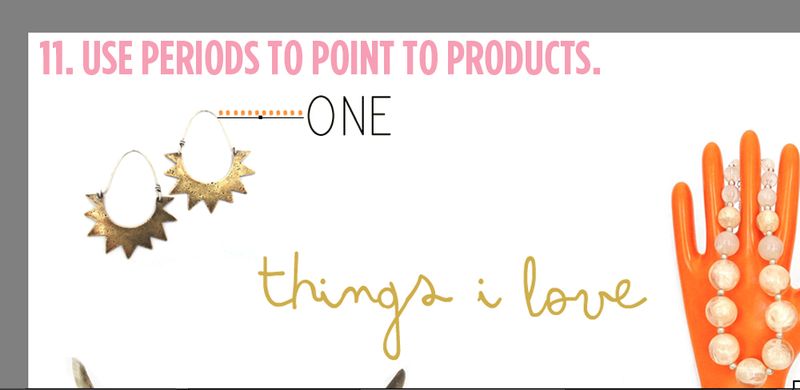 11. Use periods to point to products. Before I had a tablet to draw arrows I made dotted lines on my collages using periods (or dashes). It's simple and cute.
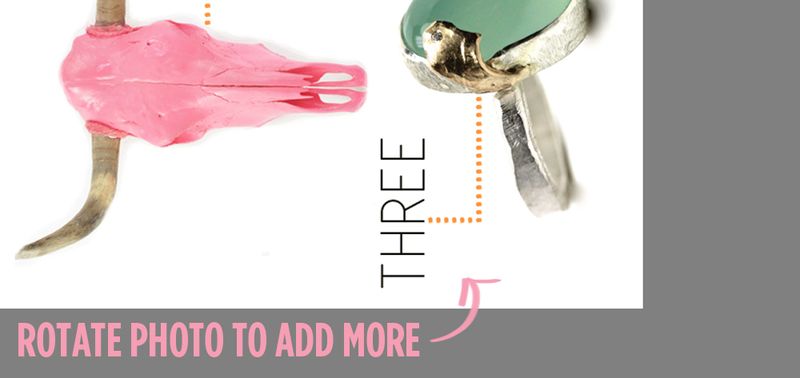 If you want your dashed lines to curve, simply rotate the photo to add more!
Done! Now you're ready to save your photo and post it on your blog with links! Maybe a little something like this-
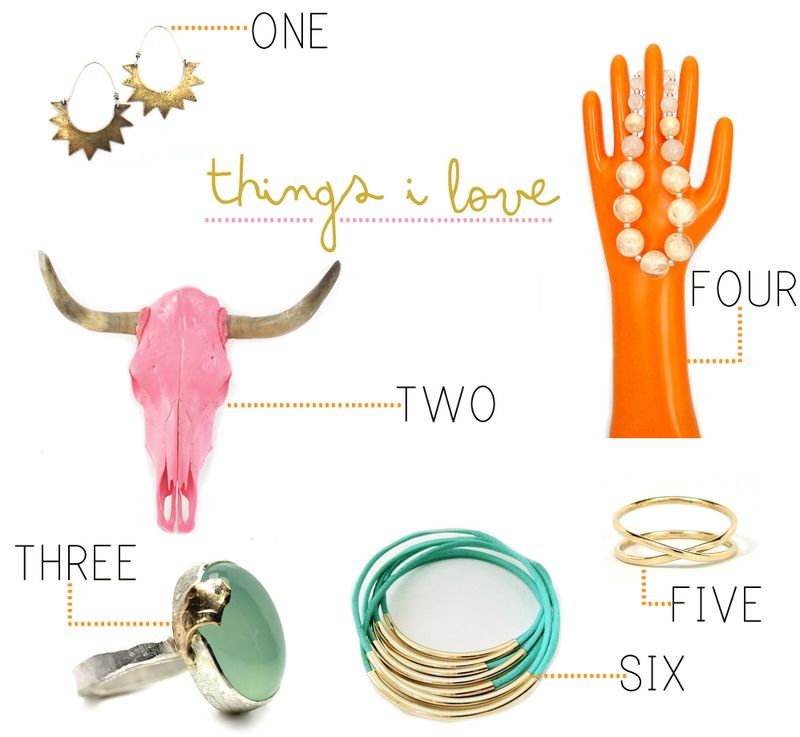 THINGS I LOVE:one.two.three.four.five.six.
Cool! I hope this has been helpful. Like I said before, this is just one method. Collages are really fun to make and the more you practice, the more creative you will become! XO. Elsie
Thanks so much to Adobe Photoshop Elements for collaborating with me on this article! You can follow them here…Facebook/Twitter/YouTube/Pinterest
Thank you, thank you, thank you.
Hello,
This was super helpful on how to make a collage, however, are the images not copyrighted? I am in the process of making a favorites list, with links, however, was hesitant to use images of the products online.
Love your website!
Laura
Hi Laura! We always link our images to the product and have never come across any copyright issues.
Are there any copyright infringements that happen when you copy images from Etsy?
Thank you so much for sharing this! I have such a hard time figuring out Photoshop but this made it very simple for me to make my first product collage!
Your site is useful
Awesome tutorial! Do you run into any copyright laws with doing this? I’m looking to start a blog and was really wondering on this. Thank you!
This was super helpful! Thank you for sharing. I’ve been trying to figure out how to create photos like this for my blog and now I know!
Thanks for sharing! I always have a problem with properly erasing weird colour backgrounds from my product collages but I’m definitely going to try that flatten and erase tip out!
Martha xo
Martha Dahhling
These steps are great… however for my blog I either use polyvore.com or sumopaint.com (free and little simpler than photoshop).
My fashion culture blog: www.soignex.blogspot.co.uk
I love the way you make your collages. Mines are a bit boring and simple. Now I will practice with this great tip!
Thanks a lot for sharing!
Samantha x
HOLY COW, how did I not notice that you used my Nova earrings when I first saw this!? Thank you! I love your blog, and I’m so happy that you like my jewelry.
Happy day 🙂
Laurel
This is going to sound tres stupid but – how do I open all the images at once? My photoshop just opens one.
Thank you so much for sharing! Because of your helpful tips, I just published my first product collection. I had been trying to figure it out on my own for a week or two now, but your steps made is very easy. Thanks again!
So excited to try this! You ladies are fab and love your blog!
Aloha!
Thank you so much for this tutorial! It is exactly what I have been looking for! 🙂
This is awesome! What fonts are you using? Thanks!
Thanks for Sharing!
This is awesome! I’ll definitely need to try it out!
www.radmagiclove.com
Thanks for this! I did a basic one for my post the other day.
Jackellyn, In the waiting line
http://jackellynsq.blogspot.com/
This was so helpful. Thank you for sharing.
Erin
http://casualstayathome.blogspot.com